
Next.js 16.2: Your AI Agent Just Got Superpowers — A DIY Hands-On Tutorial
TL;DR
Next.js 16.2 gives AI agents "superpowers" via features like Agent DevTools and Browser Log Forwarding, allowing AI to inspect, diagnose, and fix performance issues (like PPR) directly from the terminal.


Wait, frameworks are designing features for AI now?
Yes. You read that right.
On March 18th, 2026, the Next.js team dropped version 16.2 and it's not about a new hook, not about a fancy CSS trick — it's about making AI agents better at understanding your code. We are living in a time where the framework itself is asking: "Hey AI, what do you need from me to help this developer better?"And honestly? As someone who uses AI daily for coding, this makes me unreasonably happy.
If you're a beginner, don't worry — I'll walk you through every step. Even if you don't know what a terminal is, you'll see what's happening and understand how fast this world is evolving. If you're intermediate and still not sure how AI is changing the way we code... buckle up. This one's for you.
This tutorial is inspired by the official Next.js 16.2 blog post, but we didn't just read it — we built it, broke it, fixed it, and found things the original post didn't mention. New discoveries, corrections, and behind-the-scenes moments included. Let's go!
What's New in 16.2?
| Feature | What It Does |
|---|---|
Agent-ready create-next-app | New projects come with an AGENTS.md file + bundled docs for AI agents |
Browser Log Forwarding | Browser errors show up in your terminal — AI agents can finally "see" them |
Dev Server Lock File | No more accidentally starting two dev servers |
Experimental Agent DevTools | AI agents can inspect your React component tree, analyze performance, and take screenshots — all from the terminal |
Did You Know? (Curiosities We Found Along the Way)
Before we dive in, here are some wild facts we discovered while testing:
- The Next.js npm package now ships its entire documentation as Markdown files inside node_modules/next/dist/docs/. That's right — full offline docs, version-matched, sitting right there in your project. No googling needed. Your AI agent reads them directly.
- According to Vercel's research into AGENTS.md, giving agents access to bundled documentation achieved a 100% pass rate on Next.js evals — while skill-based, on-demand approaches maxed out at 79%. The key insight: agents often fail to recognize when they should search for documentation, so always-available context beats on-demand retrieval every time.
- PPR has been renamed! The official blog post still references experimental.ppr, but in the actual 16.2 release, it's been promoted to cacheComponents: true — a top-level config, no longer experimental. We found this the hard way (more on that below).
- Your AI agent can now "see" your React component tree without ever opening a browser. It runs shell commands and gets structured text back — component names, props, hooks, state, even source file locations. It's like giving your AI a pair of developer eyes.
- There's a new package manager for AI skills. npx skills add installs reusable capabilities for your AI agent, complete with security risk assessments from three different sources (Gen, Socket, Snyk). The future is wild.
Part 1: Setting Up an AI-Ready Next.js Project
Let's start from zero. Open your terminal (that black window with text where developers type commands — yes, that one!) and run:
npx create-next-app@latest nextjs-16-2-ai-demoFor beginners: This command creates a brand new Next.js project. Think of it as clicking "New Project" but with superpowers. You're telling your computer: "Hey, set up everything I need to build a website."
After the project is created, navigate into the folder and open it in VS Code:
cd nextjs-16-2-ai-demo
code .
For beginners: cd means "change directory" — you're entering the project folder. code . opens that folder in VS Code (the code editor). If code . doesn't work, just open VS Code manually and drag the folder into it.
Once inside, you'll notice something new in the project:
AGENTS.md and CLAUDE.md — these files didn't exist before 16.2. They tell AI coding agents (like GitHub Copilot, Claude, Cursor, etc.) where to find documentation before writing any code.
Here's what AGENTS.md looks like:
<!-- BEGIN:nextjs-agent-rules -->

# Next.js: ALWAYS read docs before coding

Before any Next.js work, find and read the relevant doc in
`node_modules/next/dist/docs/`. Your training data is outdated
— the docs are the source of truth.

<!-- END:nextjs-agent-rules -->
Simple, right? But incredibly powerful. It's basically saying: "Dear AI, your knowledge might be outdated. Read the actual docs first."
And those docs? They're bundled right inside your project:
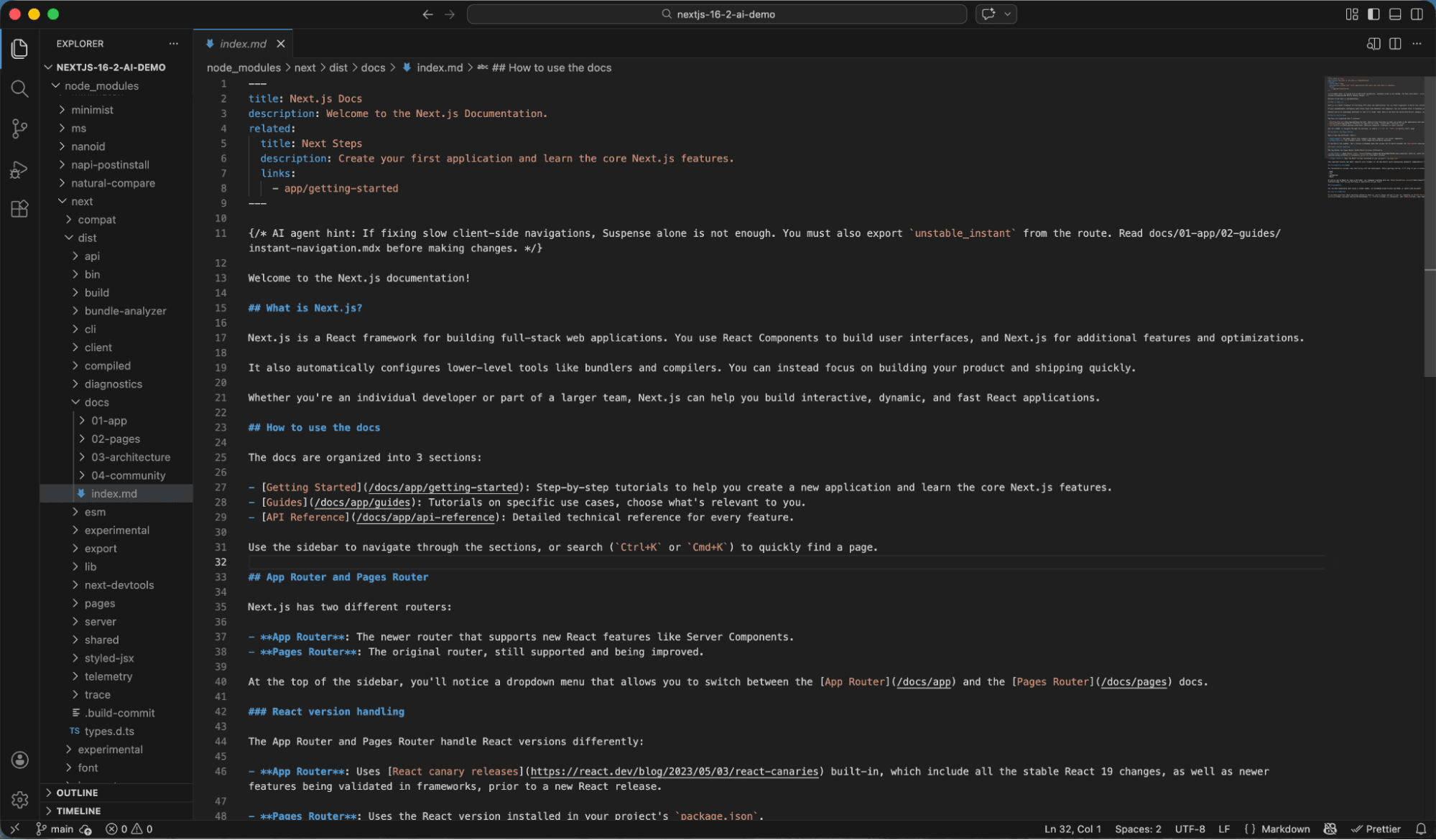
Full documentation organized by topic — App Router, Pages Router, Architecture, Community. All in Markdown. All offline. All version-matched. Your AI never needs to guess again.
Part 2: Browser Log Forwarding — Your AI Can Finally See Browser
ErrorsHere's a scenario every developer knows: something breaks in the browser, you open Chrome DevTools, find the error in the Console tab, copy it, paste it to your AI agent... it's a whole dance.
Not anymore.
In your next.config.ts, add one line:
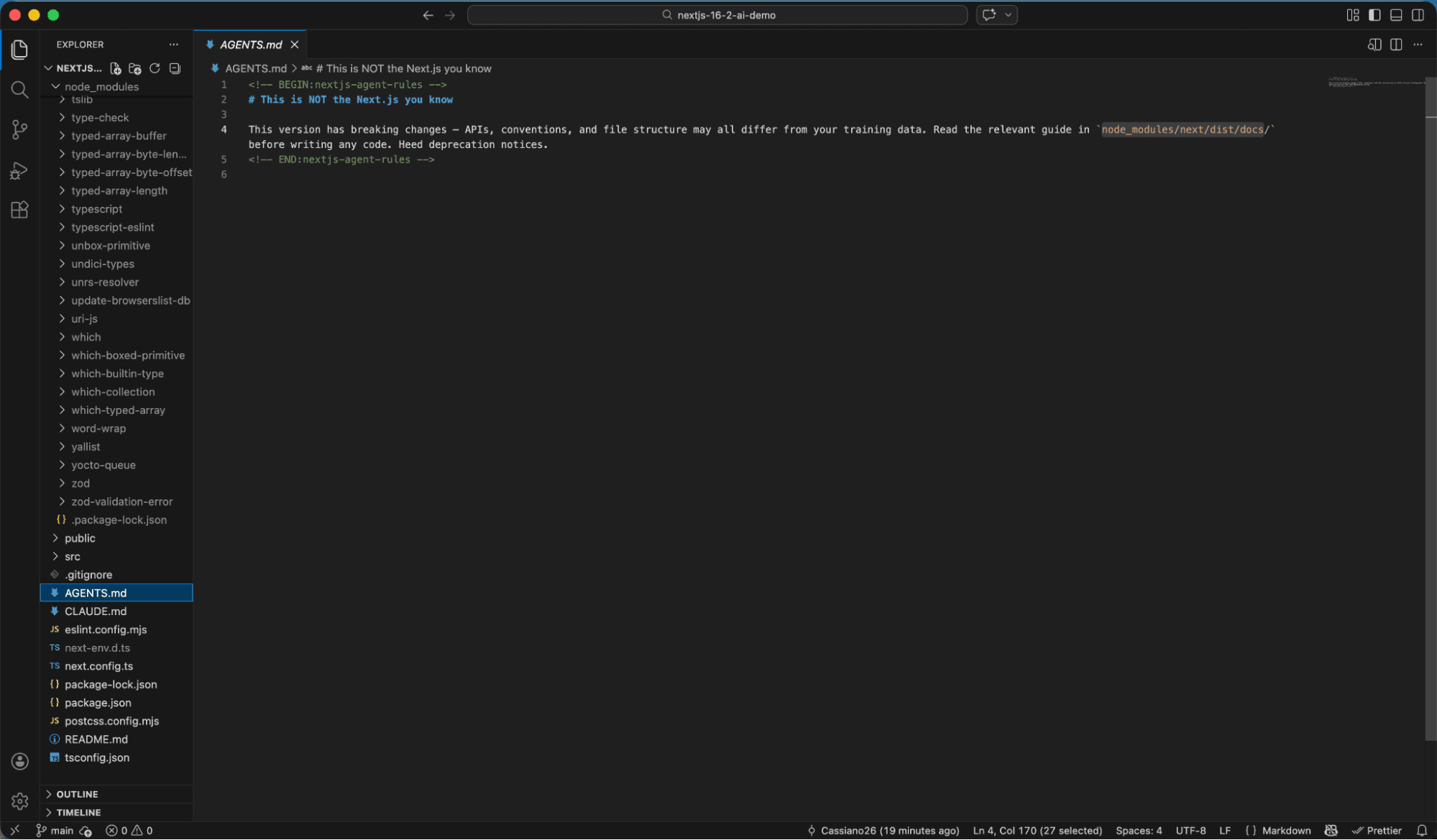
const nextConfig: NextConfig = {
  reactCompiler: true,
  logging: {
    browserToTerminal: true,  // ← This is the magic
  },
};
Now start your dev server:
npm run devFor beginners: npm run dev starts your application locally so you can see it in your browser at http://localhost:3000. When I say "run a command" — I mean type it in the terminal and press Enter. The important thing to understand is that your program is now running, and the AI can see everything that happens.
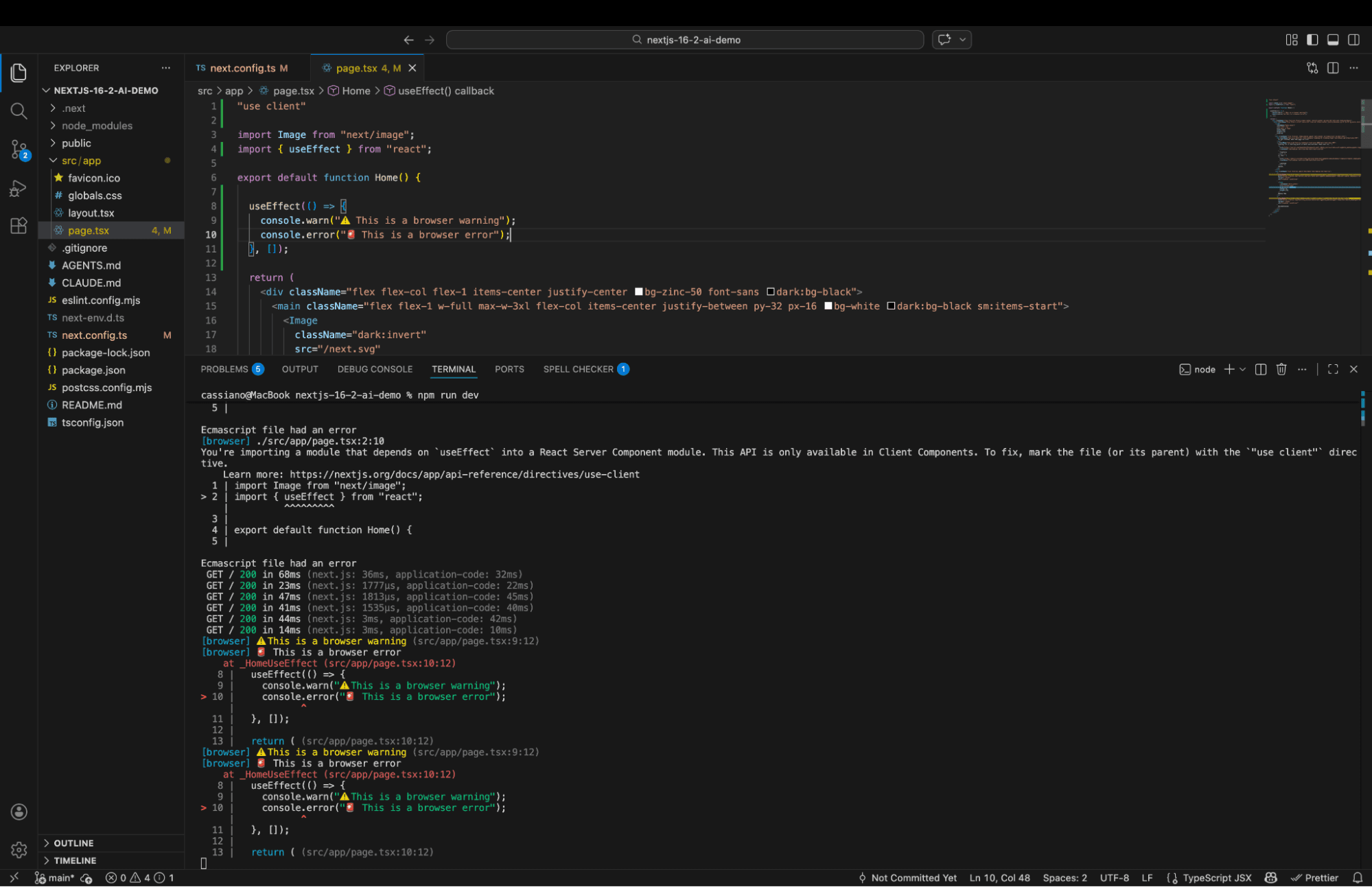
The moment you visit your page, watch the terminal:
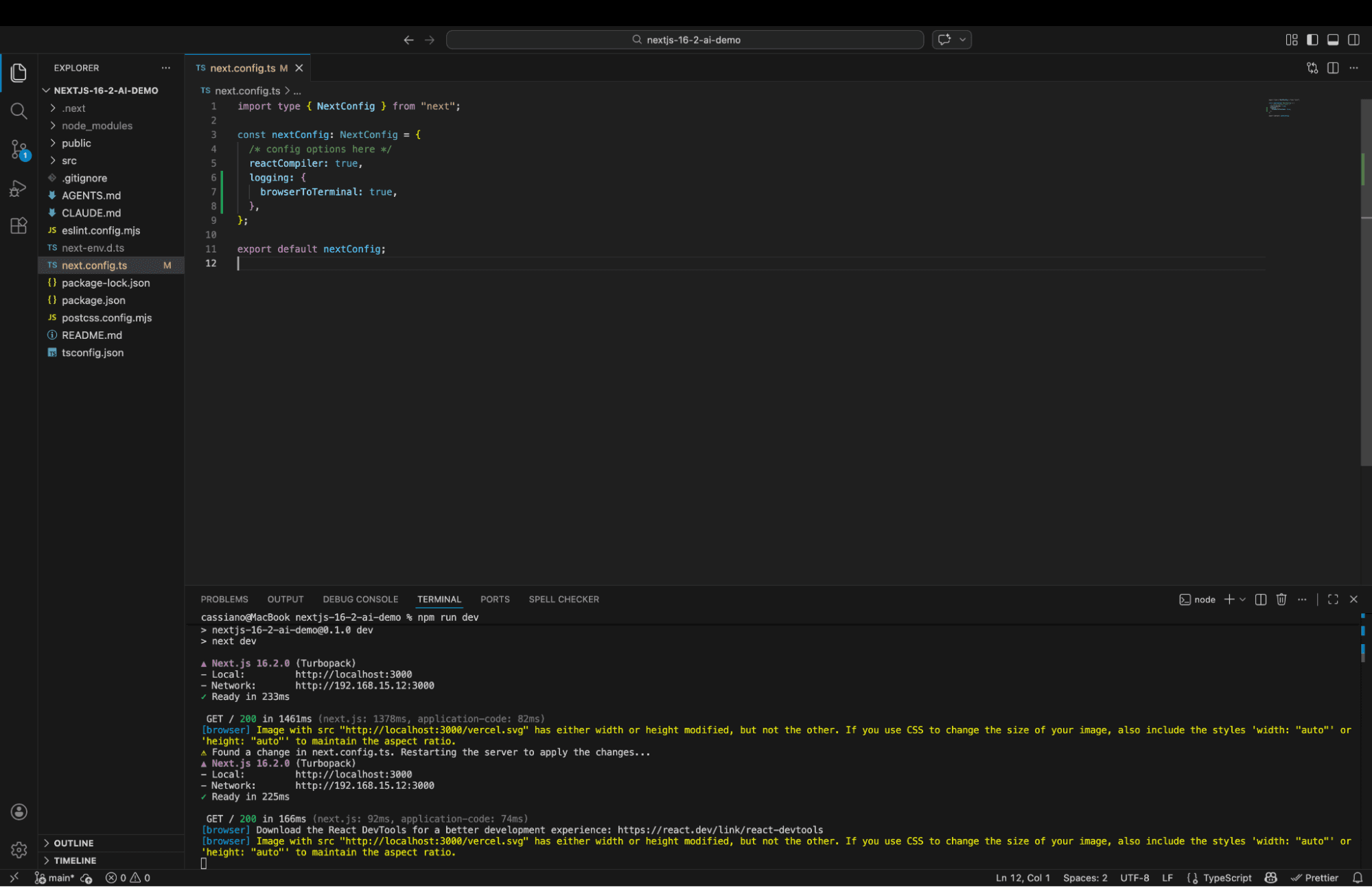
See those [browser] tags in blue? Those are browser errors and warnings being forwarded to your terminal in real-time. That Image warning about missing width/height? That would normally be buried in Chrome DevTools. Now it's right there where your AI agent lives.
We didn't even create a custom error component — the Next.js Image optimization warning showed up organically! But to show all three levels, we added a quick test:
'use client';
import { useEffect } from 'react';

export default function Home() {
  useEffect(() => {
    console.warn("⚠️ This is a browser warning");
    console.error("🚨 This is a browser error");
  }, []);

  return <h1>Next.js 16.2 Demo</h1>;
}
| Value | What Gets Forwarded |
|---|---|
'error' | Errors only (default) |
'warn' | Warnings + errors |
true | Everything (logs, warnings, errors) |
false | Nothing |
Why this matters for AI: Until now, if you asked your AI agent to debug a client-side error, it was flying blind. It could only see the terminal. Now the terminal shows browser errors too. As someone who uses AI heavily for development, this feature alone makes me happy — no more "can you check the browser console for me?"
Part 3: Dev Server Lock File — No More Ghost Servers
This one is short but sweet. AI agents have a funny habit: they love running npm run dev even when a server is already running. Before 16.2, this would cause silent port conflicts or cryptic errors.
Now? Watch what happens when you try to start a second dev server:
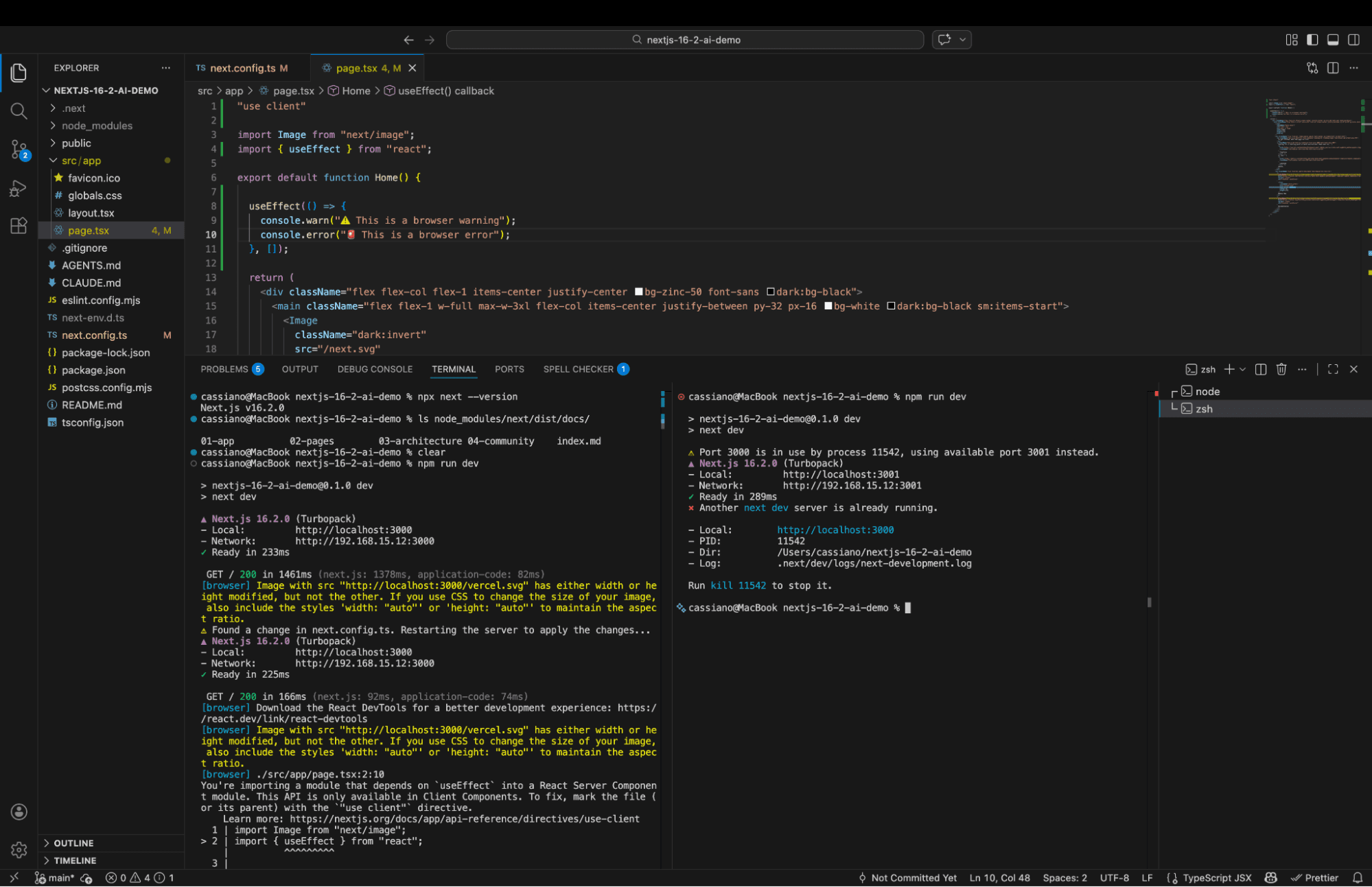
Error: Another next dev server is already running.

- Local:        http://localhost:3000
- PID:          11542
- Dir:          /Users/cassiano/nextjs-16-2-ai-demo
- Log:          .next/dev/logs/next-development.log

Run kill 11542 to stop it.
Every piece of information an AI agent needs in one structured message: the URL to connect to, the PID to kill, the directory, and even the log file path. No guessing, no manual intervention. The AI reads this, understands immediately, and either uses the existing server or kills it.
Small feature, huge quality-of-life improvement.
Part 4: Agent DevTools — This Is Where It Gets Mind-Blowing
Everything above was the appetizer. This is the main course.
Installing next-browser
First, we install the next-browser skill — a new tool that lets AI agents inspect your running application like a developer would with Chrome DevTools, but entirely through the terminal:
npx skills add vercel-labs/next-browser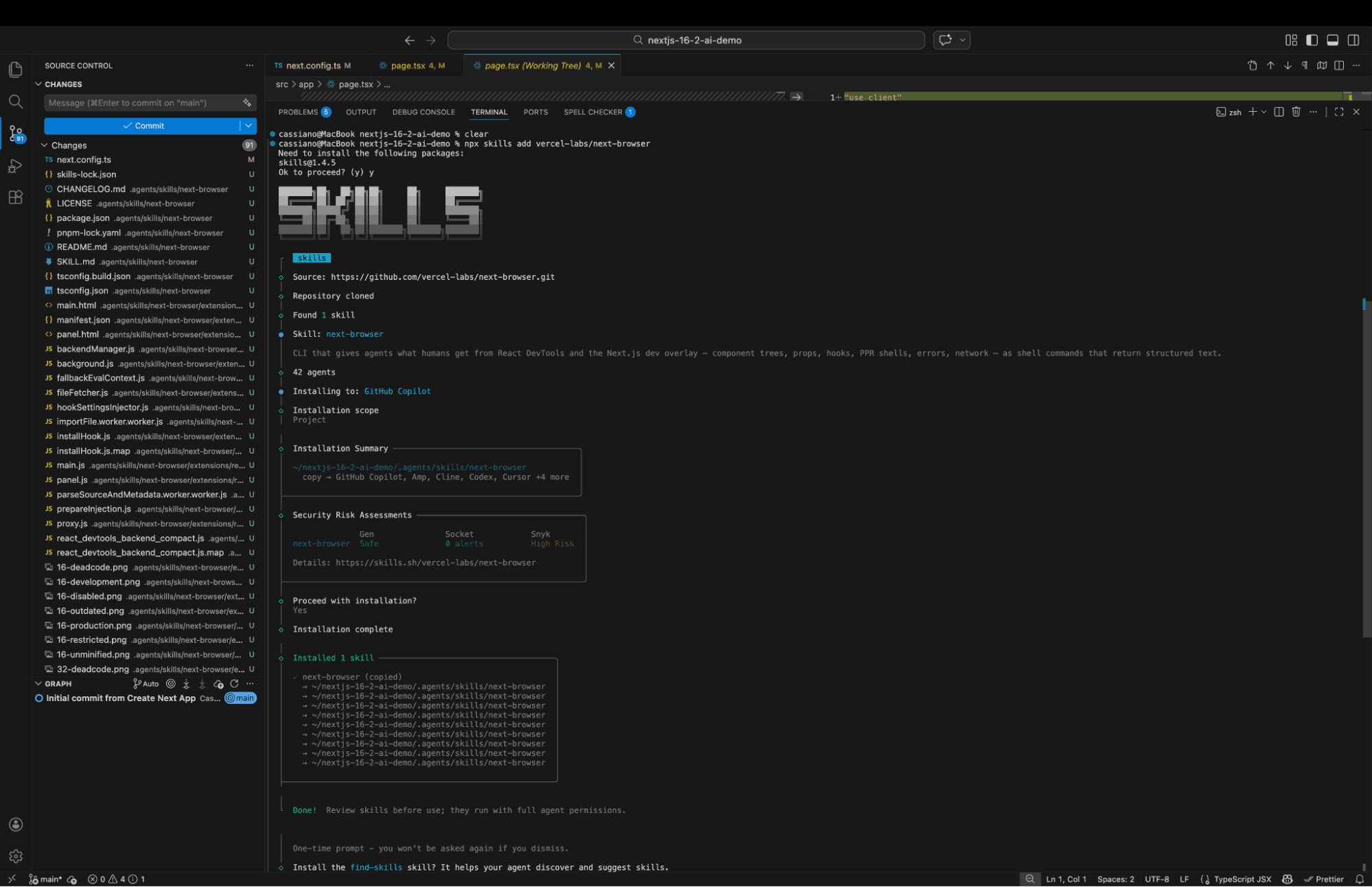
Here's something interesting: the installation shows security risk assessments from three different sources — Gen AI analysis (Safe), Socket (0 alerts), and Snyk (High Risk). The ecosystem is already thinking about security for AI tools. Good.
But here's where it gets really cool. When we typed /next-browser in our AI chat (GitHub Copilot), the agent:
Tried to find next-browser → not found
Automatically installed it globally: npm install -g @vercel/next-browser@latest
Automatically installed Chromium: npx playwright install chromium (91.1 MiB)
Opened a browser session: next-browser open http://localhost:3000
Said: "Browser is open. What would you like to inspect?"
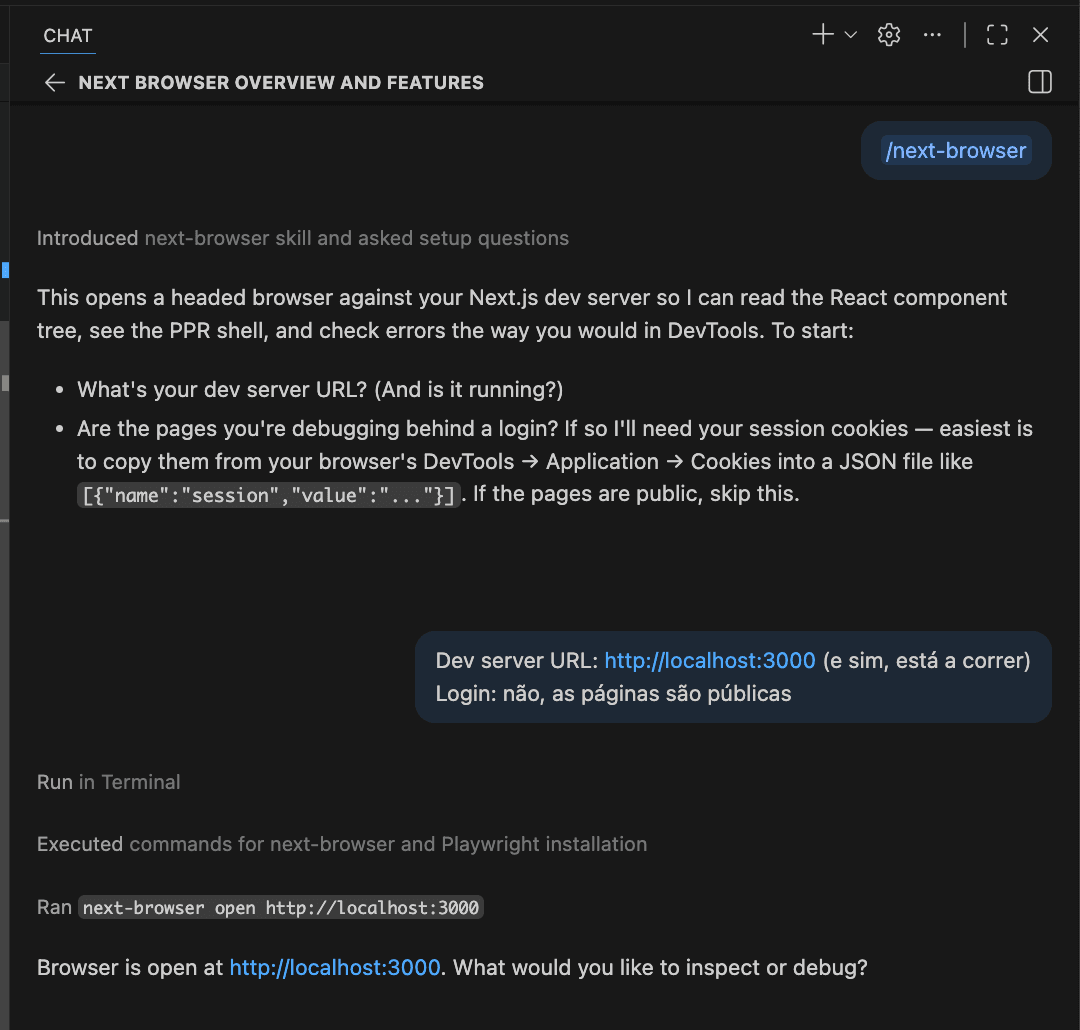
The AI agent set up its own tools without us doing anything. This is the self-healing, self-configuring vision of AI-assisted development in action.
The PPR Challenge: Growing the Static Shell
Now let's give the AI a real problem to solve. We created a blog post component with a visitor counter:
export default async function BlogPost({ params }) {
  const { slug } = await params;
  const post = await getPost(slug);
  const views = await getVisitorCount(slug); // 2 second delay!

  return (
    <article className="max-w-2xl mx-auto p-8">
      <h1>{post.title}</h1>
      <span>{views} views</span>
      <div>{post.content}</div>
    </article>
  );
}
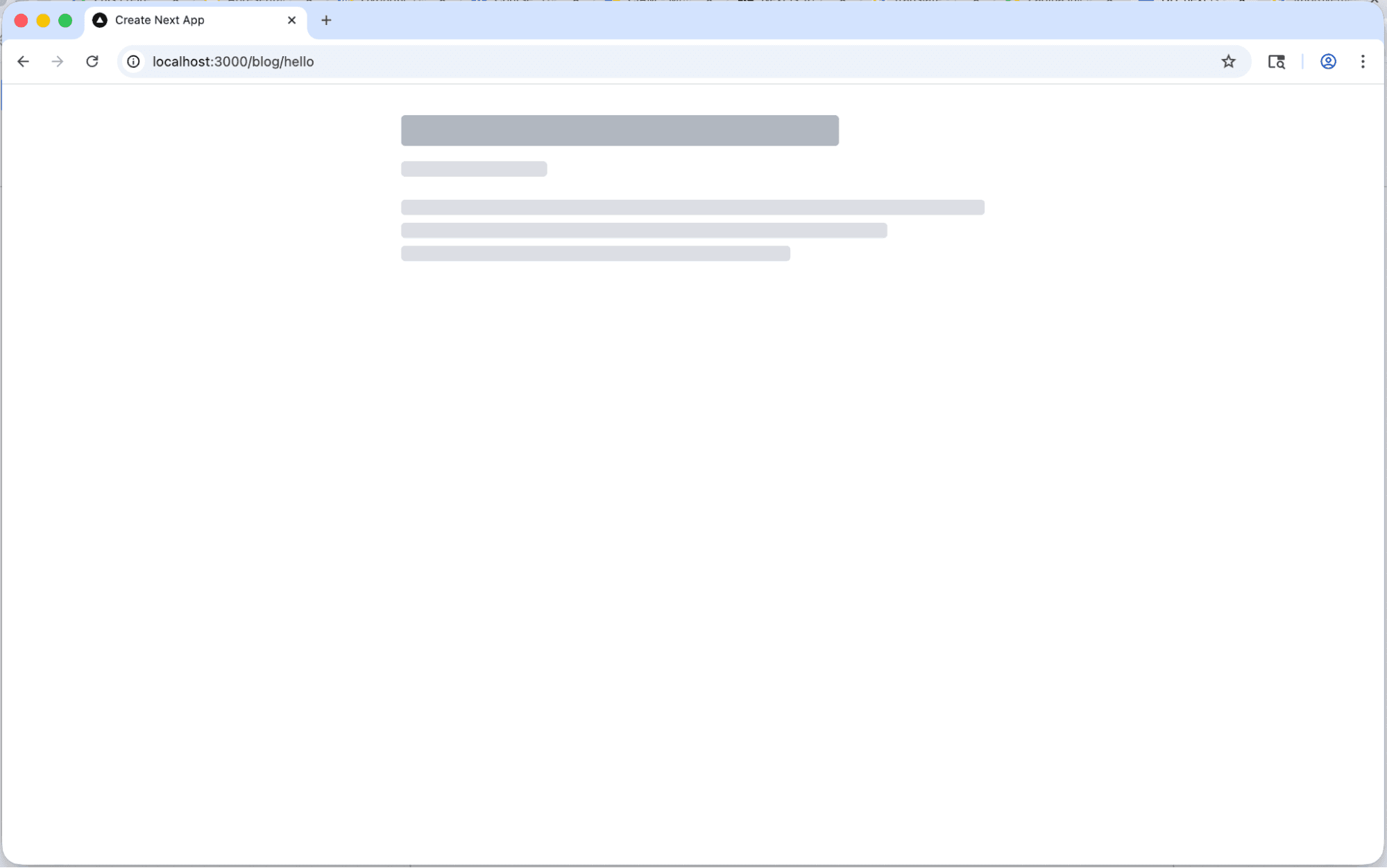
The problem? getVisitorCount takes 2 seconds (simulating a real API call), and because it's at the top level of the component, it makes the entire page dynamic. Nothing gets pre-rendered. Users stare at a skeleton for 2 full seconds.
Quick Update: PPR Config Has Changed!
When we tried to enable PPR with experimental: { ppr: true } (as shown in the official blog post), we got this:
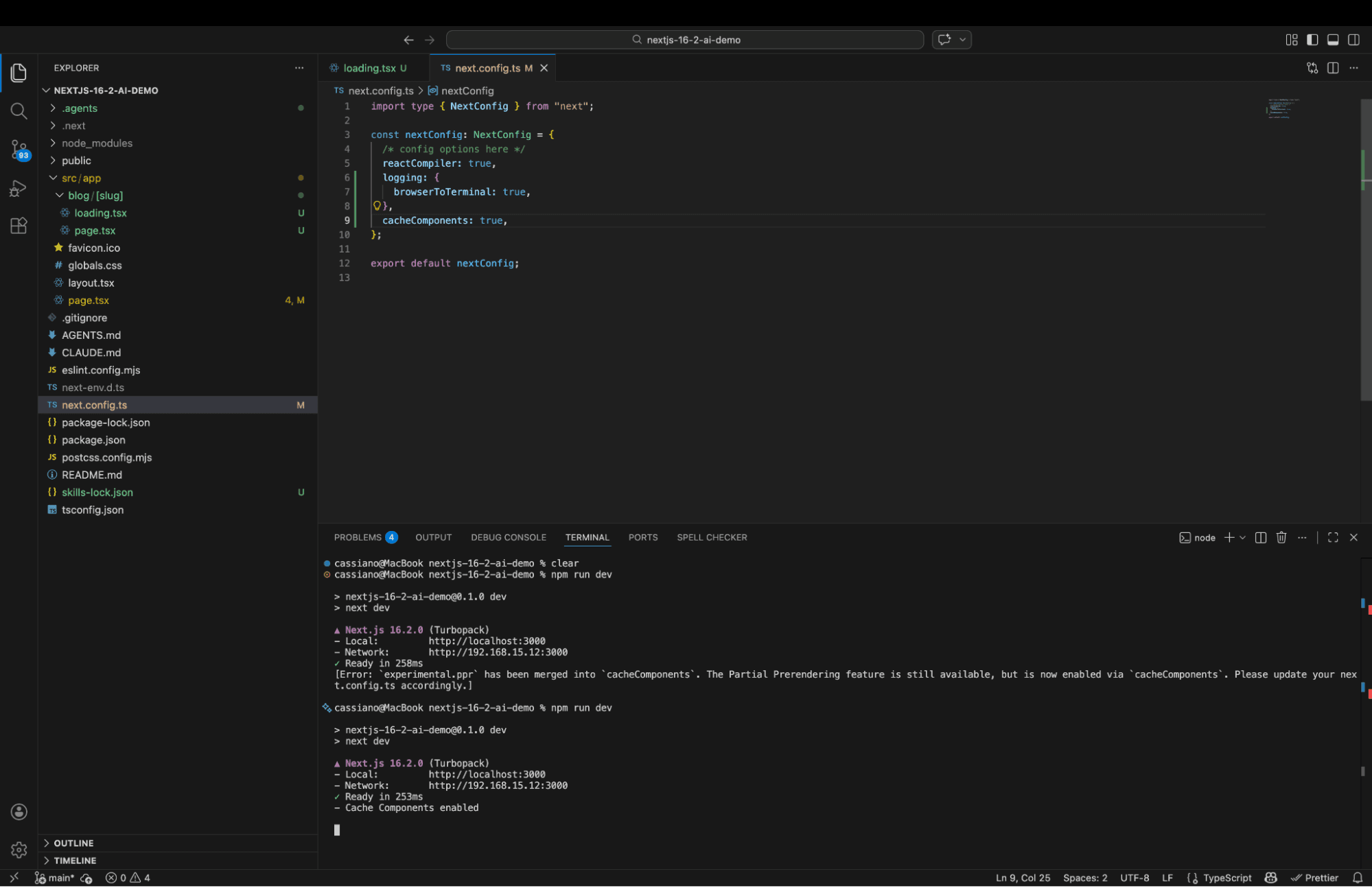
Heads up! If you're following the original Next.js 16.2 blog post, the PPR config has been promoted. Use this instead:
const nextConfig: NextConfig = {
  cacheComponents: true,  // ← NOT experimental.ppr anymore!
};
This is something the original post doesn't mention — PPR is no longer experimental in 16.2! Consider this article your updated source.
Asking the AI to Diagnose the Problem
We asked: "Go to /blog/hello and show me the component tree."
The AI ran next-browser goto + next-browser tree and returned:
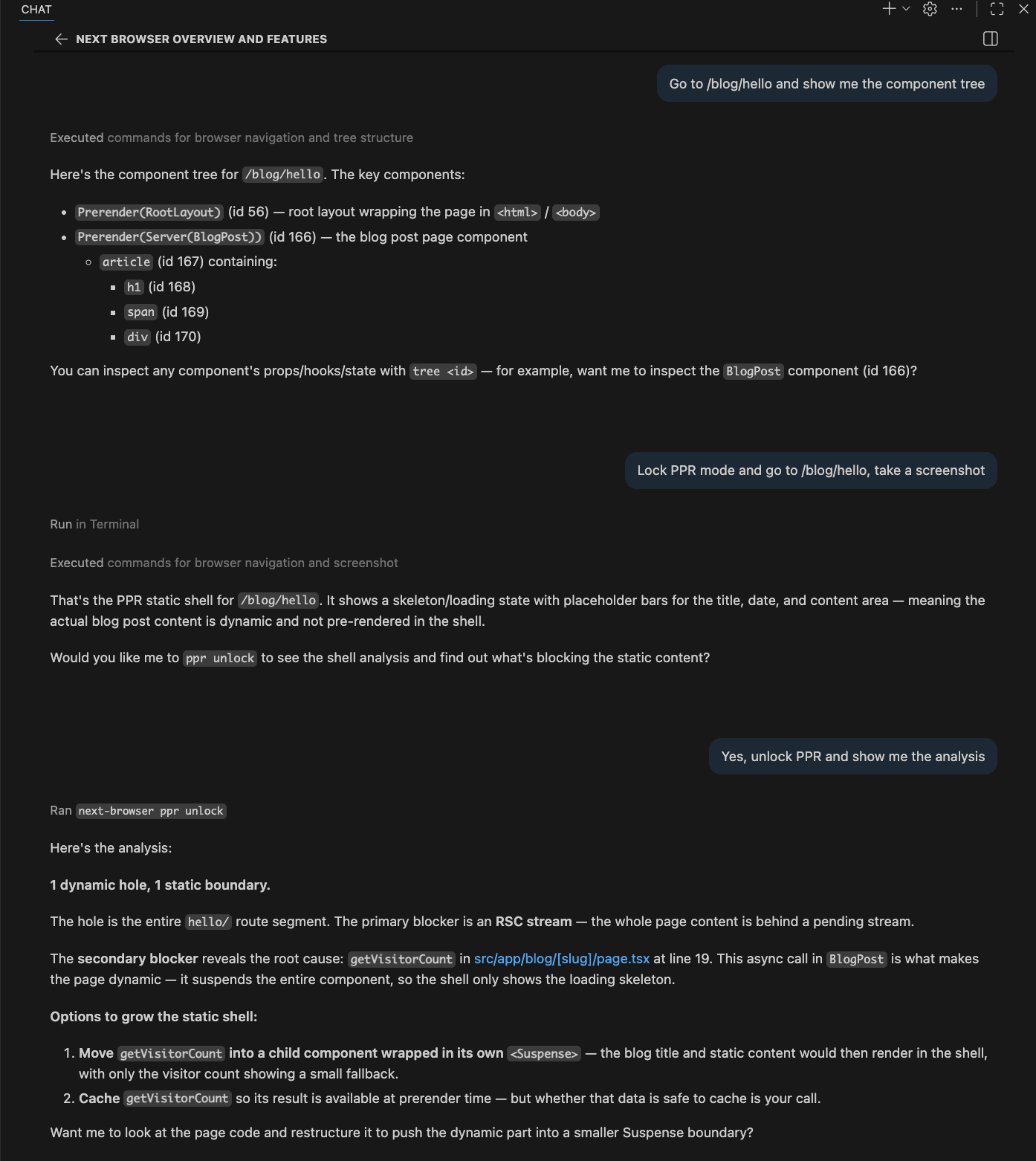
The agent could see every React component, every boundary, every node — all from the terminal. It even offered: "You can inspect any component's props/hooks/state with tree <id>."
Then we asked: "Lock PPR mode and take a screenshot."
The agent locked PPR mode (showing only the static shell), navigated to the page, took a screenshot, and diagnosed: "The actual blog post content is dynamic and not pre-rendered in the shell."
Then it asked: "Would you like me to ppr unlock to find out what's blocking?"
Yes. Yes we would. The analysis:
1 dynamic hole, 1 static boundary.
The secondary blocker reveals the root cause: getVisitorCount in src/app/blog/[slug]/page.tsx at line 19. This async call in BlogPost is what makes the page dynamic — it suspends the entire component.
Options to grow the static shell:
- Move getVisitorCount into a child component wrapped in its own <Suspense>
- Cache getVisitorCount so its result is available at prerender time
The AI identified the exact function, the exact file, the exact line number, and suggested two concrete fixes.
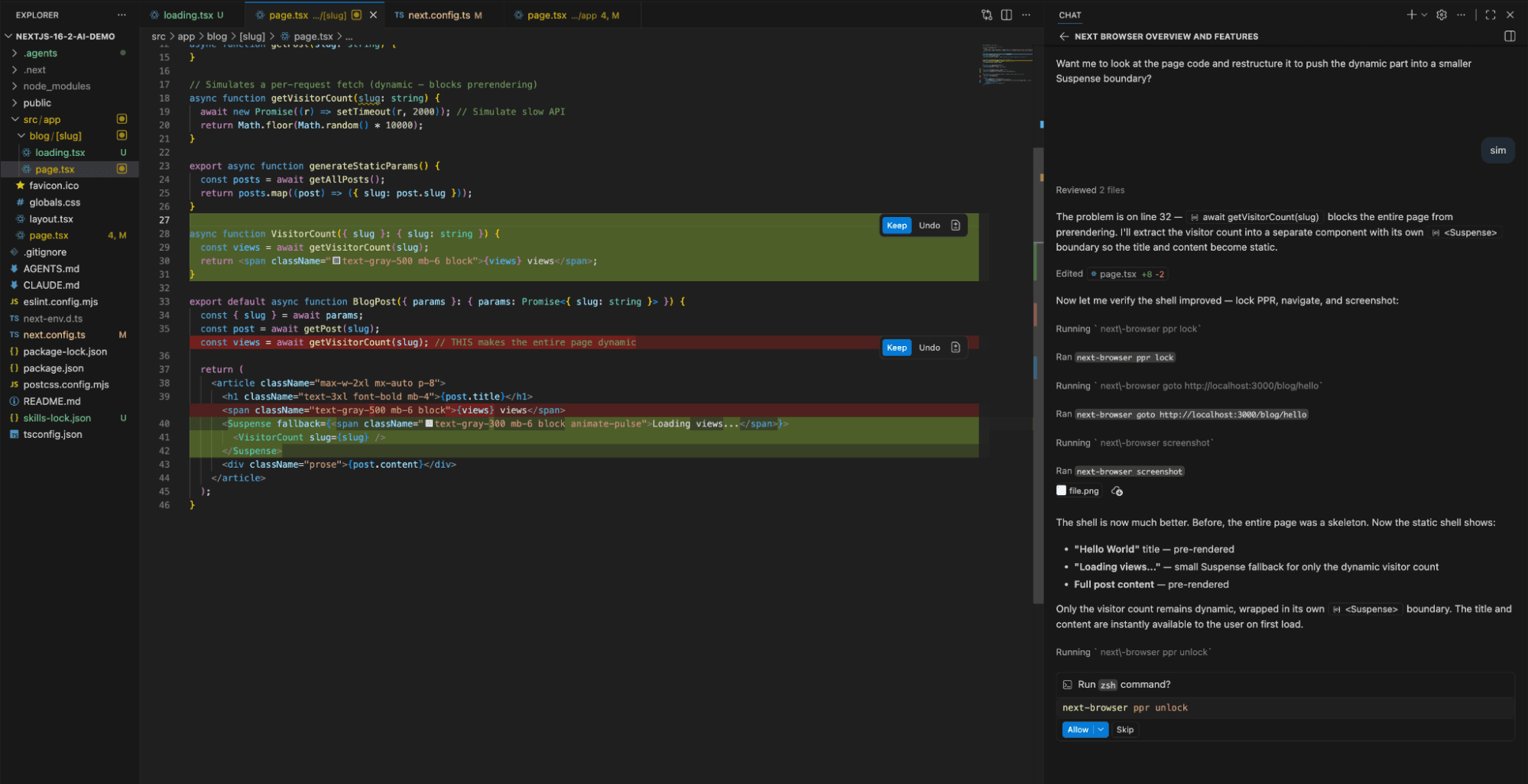
The AI Fixes It
We said: "yes"
The agent:
- Reviewed 2 files
- Identified the blocker on line 32
- Extracted the visitor count into a separate component
- Wrapped it in its own <Suspense> boundary
- Edited page.tsx (+8 lines, -2 lines)
The fixed code:
async function VisitorCount({ slug }: { slug: string }) {
  const views = await getVisitorCount(slug);
  return <span className="text-gray-500 mb-6 block">{views} views</span>;
}

export default async function BlogPost({ params }) {
  const { slug } = await params;
  const post = await getPost(slug);

  return (
    <article className="max-w-2xl mx-auto p-8">
      <h1>{post.title}</h1>
      <Suspense fallback={<span className="text-gray-400">Loading views...</span>}>
        <VisitorCount slug={slug} />
      </Suspense>
      <div>{post.content}</div>
    </article>
  );
}
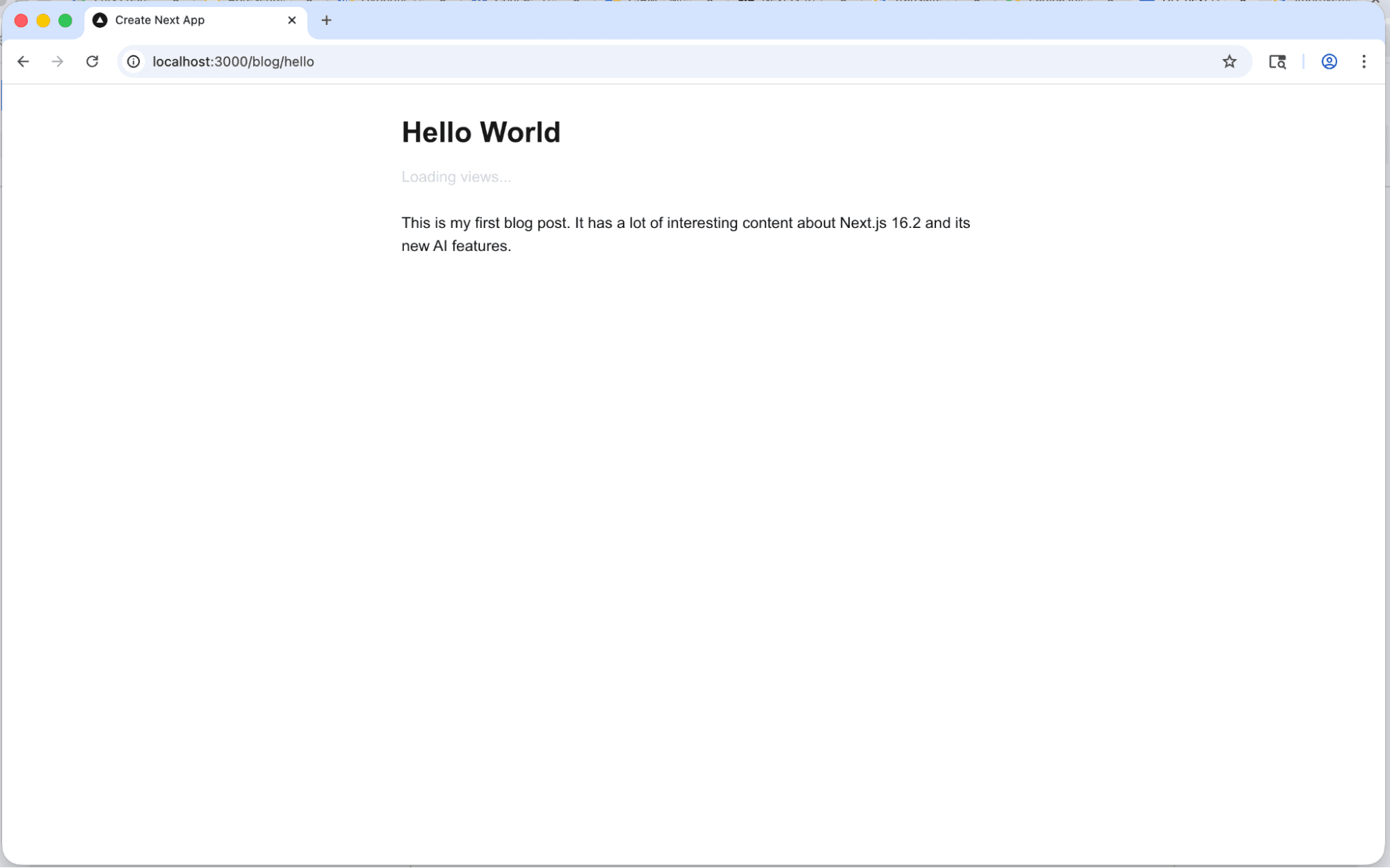
Then, without being asked, the agent re-ran ppr lock, navigated to the page, and took another screenshot to verify:The analysis:
The shell is now much better. Now the static shell shows:
- "Hello World" title — pre-rendered
- "Loading views..." — small Suspense fallback for only the dynamic visitor count
- Full post content — pre-rendered
Only the visitor count remains dynamic. The title and content are instantly available to the user on first load.
| Before | After | |
|---|---|---|
Static Shell | Empty (full skeleton) | Title + Content pre-rendered |
Dynamic Parts | Entire page | Only visitor counter |
User Experience | 2s skeleton wait | Instant content, counter streams in |
What You See | Gray placeholder bars | Real content + "Loading views..." |
And the developer never opened Chrome DevTools once. The AI did everything: inspected, diagnosed, fixed, verified. This is the future, and it's already here.
Brilliant Tips You Might Be MissingHere are some insights that came from actually building this, not just reading about it:1. loading.tsx is Magic (But Invisible Magic)
In the App Router, you don't import loading.tsx anywhere. Just create the file in the same directory as your page.tsx, and Next.js automatically wraps your page in a <Suspense> boundary with your loading component as the fallback. It's a convention, not a configuration.
2. Add AGENTS.md to ALL Your Projects
The pattern isn't Next.js-specific. Create an AGENTS.md in any project and write instructions for AI agents. Tell them where the docs are, what conventions you follow, what to avoid. It's like onboarding a new team member — except the team member is an AI.
3. browserToTerminal: 'warn' for CI/CD
In production CI pipelines, use 'warn' instead of true. You want to catch warnings and errors without drowning in console.log noise.
4. The Lock File Saves Monorepos
If you work in a monorepo where multiple developers (or AI agents) might start dev servers, the lock file pattern prevents stepping on each other's toes. One server per project directory, enforced by a lock file. Simple and effective.
5. Skills Are the New Packages
npx skills add is essentially npm for AI capabilities. The next-browser skill we installed detected 42 compatible agents (GitHub Copilot, Amp, Cline, Codex, Cursor, and more). This ecosystem is going to explode.
What's Coming Next?
If 16.2 is about giving AI agents eyes and ears, the next step is obvious: giving them hands.
Imagine:
- AI agents that automatically optimize your PPR shells on every commit
- Self-healing applications that detect performance regressions and fix them
- The Vercel AI SDK + Next.js converging into a single intelligent development platform
We're not there yet, but the direction is clear. Frameworks aren't just shipping features for developers anymore — they're shipping features for the AI agents that help developers built the product faster.
The Takeaway
Here's what I want you to remember from this article:
We built an app, found a performance problem, diagnosed it, fixed it, and verified the fix — and the AI agent did the heavy lifting without us ever opening a browser's DevTools.
That's not science fiction. That's a Thursday afternoon in March 2026.
If you're a beginner, know this: the tools are getting better at meeting you where you are. You don't need to understand every concept deeply to start building. The AI is there to help, and frameworks like Next.js are making that help more effective every release.
If you're an intermediate developer wondering how AI changes your workflow — this is how. Not by replacing you, but by giving you a tireless partner that can see what you see, understand what you understand, and suggest what you might miss.
It's a spectacular time to be a developer.
Now go build something. 🚀
Tags
Services used
Author

Full Stack Developer
Electronic Engineering graduate turned Full Stack Developer at Hypnotic Agency, Portugal. Tech enthusiast, AI-powered coding advocate, and eternal learner.