
Can AI deliver a (good) mobile solution?
TL;DR
In this article, we explore whether AI can create a fully functional mobile app for someone with no development skills or coding knowledge, while also examining its capabilities, limitations, and the realistic expectations for such a process.

Overview
I’ve been working with mobile technologies for a long time, especially with Flutter ever since it was introduced back in 2018. It’s been my go-to framework for mobile development, leaving native development almost entirely aside (except when some Flutter plugins require it). Flutter has proven to be a solid framework, offering a Swiss army knife of tools that typically allow you to get your solution done with ease — of course, assuming you’re already comfortable with the whole mobile development stack (tools, environment, limitations, etc.).
But we are entering an AI-driven era where tools can help us work faster, increase productivity overall, and of course, leave us with fewer excuses for poor-quality products. If you already have the knowledge and now you’re offered tools to enhance it, what else can you do other than deliver high-quality, feature-rich solutions with the same — or even less — effort? AI isn’t here to replace us as problem-solvers; it’s here to actually assist us in that mission. This is, at least, my take on AI and how it should fit into our workflow: now you can reach 100% test coverage more easily, ensure your code is well-structured and bug-free, fully documented — basically, hand over the boilerplate or less enjoyable work to AI so you can focus on what truly matters: solving your customers’ problems and delivering the best product solutions.
But… what if you just had an idea five minutes ago and don’t know how to code at all? What if you need to create a quick prototype just to “put that idea on paper,” so you can eventually show it to someone who might improve it? Or even if you do have the skills, maybe you don’t have the time to work on it, and that idea could slip away forever.
Well, wait a minute, let’s say it better — what if you could just type out that idea and get a working solution ready to show in minutes, or at most a few hours, without writing a single line of code? That’s exactly where AI can help — for real.
That said, I’ve never actually tried this myself. So today, as a Lead/Senior Flutter Developer who has led multiple large-scale enterprise projects, I want to put this idea to the test and see just how easy and fast AI can provide a Flutter (of course, because that’s what I love) app solution. And maybe, at the end, I’ll think, “I could’ve done it better” — which would be a fun feeling, hopefully not!
So, without further ado, let’s get our hands dirty. 🚀
The solution
For this exercise, I will create a persona who acts as our “developer” — someone with no coding skills who wants a product built entirely with AI. Step by step, with the minimal required tools, here’s the breakdown of what we’re going to try to achieve and what’s needed — assuming I had zero clue about coding.
Persona
I’m a psychologist who would like to offer my patients a simple tool to track their moods over time. This way, I can gather more data during appointments and better guide them throughout the sessions. I don’t know anything about coding, so I’m going to rely on AI to help me on this journey.
The app idea
It would be great to have an app where users can easily log their mood, enjoy a clean and intuitive UI, and quickly view a history of their past days and moods. Maybe I can start noticing patterns in my patients’ moods? Perhaps they’re happier on weekends than weekdays (should we track this?), or maybe they’re workaholics and don’t realize it — but the app might help them see that their mood drops on weekends. Or, maybe their mood fluctuates throughout the day depending on daily events. Let’s figure it out.
Problem
I don’t know anything about coding or computers. All I know is that everyone talks about AI and how it can help create solutions like this. So, I’m going to give it a shot.
Pre-requisites:
- A computer with internet access 💻
- Basic typing and reading skills ⌨️
- Access to ChatGPT or a similar AI assistant 😎
I think that should cover it all, assuming that AI will guide me throughout the whole process 😁
Note: For simplicity and clarity, I won’t be posting the AI’s full responses. Instead, I’ll summarize them in a way that makes sense for the article.
The journey
1. Giving the AI a brief idea of what I want, and where to start
Again, I don’t know anything about coding. So let’s dive in. I installed ChatGPT and gave it this prompt:
Prompt:
I’m a psychologist who wants to create an app for my clients to log their moods with a great UI/UX. I want to use Flutter because people told me it’s a good framework for cross-platform development, but I don’t know anything about it or about coding in general. I’m solely relying on you to guide me through the entire process. Can you tell me what I need to install and where to start? Thank you.
Response:
The agent gave me a clear step-by-step guide: how to install the tools I need, like Flutter, VS Code, and even how to test the app on a device. It warned me that I need macOS to test and run the app on iOS — which was lucky for me, since I was on a Mac.
It even went further, explaining how Flutter projects are structured within VS Code and gave me a quick overview of how widgets interact, such as:
Widget
  └─ Text("Hello World")
  └─ Button(onPress: doSomething)
But honestly, this doesn’t tell me much — again, I don’t know how to code. Still, I suppose it’s a great insight 💡
It also gave me the plan for my persona’s mood-tracking app:
Before writing any code, let’s define what our app needs:
- Login/Sign up screen – users can create accounts
- Mood logging screen – choose moods like happy, sad, anxious, calm, etc.
- History screen – show previous moods in a calendar or graph
- Profile screen – optional: notes, personal data
Later, we can add analytics, reminders, dark mode, and more.
The AI even suggested that after finishing the setup, since I have zero coding experience, I should just tell it so we could move forward block by block. But… I didn’t actually want to write code. I mean, I’m lazy 😅 and I wanted the laziest approach possible — writing as little as possible and letting the AI handle prompts and code. The plan looked great out of the box, so I told it it looked good and asked if there was a way for me to just watch instead of actively prompting and copying/pasting.
So, let’s move one with another prompt:
Prompt:
That’s a great plan/idea! But I’m lazy and I don’t want to write code or even copy/paste. I’ve already completed the setup process. Is there any way you can code the app for me and present it as a ready-to-use solution?
Response: (summarized)
- Provide full code templates
- Use a no-code tool
- Hybrid approach — generate the code for me
It suggested the third option as the most reliable. I agreed, since it seemed like the one that required the least work from me. People often say that there are agents these days that can code for us, but here, its suggestion was to deliver the entire project ready to use. I was skeptical at first, but it looked like a win-win situation — so, let’s give it a try.
2. The Proposed Solution
Here’s the solution it proposed:
1. Login / Sign-up screen
- Demo accounts (no backend yet, local storage only)
- Simple email/password fields
- Navigation to the mood screen after login
2. Mood logging screen
- Choose a mood from 5 options: Happy, Sad, Anxious, Calm, Neutral
- Add an optional note
- Save locally
3. Mood history screen
- Show previous moods in a simple list (date + mood + note)
- Optionally, add a graph later
4. Navigation
- Bottom navigation bar: Mood Screen / History / Profile (optional)
Delivery method:
The AI suggested delivering the app like this:
- The full Flutter project structure, including:
- lib/ folder with all Dart files (screens, widgets)
- pubspec.yaml with dependencies
- assets/ folder with mood icons
- You just:
- Download the folder
- Open it in VS Code
- Press F5 → and the app runs immediately
Looks great (that’s my persona’s thought)! (I also told it to include the optional Profile screen.)
Before generating the project, it asked me a few details to make the app feel exactly how I wanted:
- App name: What should your app be called?
- Mood options: Do you want exactly these 5 moods — Happy, Sad, Anxious, Calm, Neutral?
- Color scheme: Any preferred colors (e.g., calming blues, bright, pastel)?
- Logo / icon: Include a placeholder or do you have one?
Which the persona then replied accordingly:
- Surprise me — something that fits the app, but not copying existing names.
- Yes, those 5 moods are perfect.
- I want cheerful colors, ideally dynamically changing the background or some thematic elements based on the selected mood.
- I don’t have one, so please create a simple placeholder.
Here’s the final solution it gave me before generating the project:
App Plan (Customized)
- App Name: 🌈 MoodScape — a cheerful, friendly name suggesting mood tracking and “changing landscapes” with moods.
- Moods: Happy, Sad, Anxious, Calm, Neutral
- Color Scheme & Theme:
- Dynamic background color based on the selected mood:
- Happy → bright yellow / orange
- Sad → soft blue
- Anxious → light red / coral
- Calm → pastel green / teal
- Neutral → light gray / beige
- Buttons and icons cheerful, readable, playful but professional
- Dynamic background color based on the selected mood:
- Logo/Icon: a simple placeholder logo — a smiling cloud with a gradient that subtly changes with mood
- Screens & Navigation:
- Login / Sign-up → local demo accounts
- Mood Logging → select mood + optional note → background color changes dynamically
- History → list of previous entries (date + mood + note)
- Bottom Navigation Bar → Mood / History / Profile
- Extra UX touches:
- Smooth background color transition when selecting a mood
- Cheerful icons for moods
- Clean, simple layout for easy daily logging
It even asked if I wanted some demo data so the app would feel “alive” out of the box.
Well, this all looked amazing! At this point, only a few minutes had passed, way less time than I’d spend talking to a corporate dev team, and it cost me so far €0.
3. The Solution
Well, the first obstacle appeared — it seems the AI can’t provide a ready-to-use ZIP folder like initially suggested. (As a developer, I know we could use an agent inside the IDE to get around this, but remember — my persona knows nothing about coding, and the AI didn’t suggest this either, so I’ll stick to that scenario for the sake of simulation even though I know I’m making my task harder 👀).
However, it did suggest the full project structure, including how to create the files and what to paste into each of them. Well… that actually seems easy enough. I think I can handle it. Let’s go.
The suggested structure is as follows:
moodscape/
├─ lib/
│  ├─ main.dart
│  ├─ screens/
│  │   ├─ login_screen.dart
│  │   ├─ mood_screen.dart
│  │   ├─ history_screen.dart
│  │   └─ profile_screen.dart
│  ├─ widgets/
│  │   └─ mood_button.dart
│  └─ models/
│      └─ mood_entry.dart
├─ assets/
│  └─ mood_icons/   (placeholder icons will be simple Flutter shapes)
├─ pubspec.yaml
I copied all the file contents into their respective files and started running the project on my iOS device (simulator) as suggested. It took a while to build, but in the end, this was the out-of-the-box result:
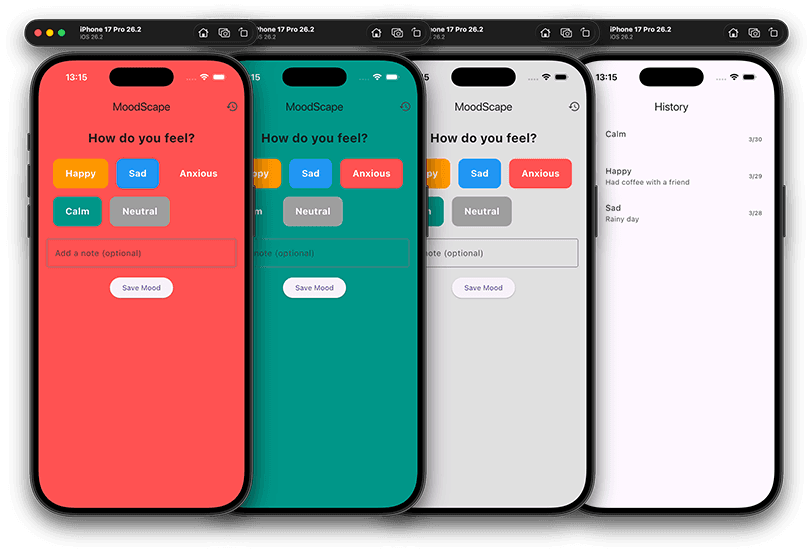
Well… this is not what I was expecting. It felt like a very poor solution, at least from a UI/UX perspective. But considering the minimal effort involved, I guess I can’t complain too much — still, it didn’t look good either. It was quite far from what I had in mind.
The login worked with anything (no validation at all), the home screen looked very basic and not visually appealing, and while the history screen was okay-ish, I was expecting something more — like graphs or some kind of visual insights.
So, after thinking about it for a bit, here was my feedback:
- Login should act as a simple privacy layer, so it actually needs to work (e.g., ask for a password on first use and validate it afterward).
- The main screen should feel beautiful and engaging — maybe a large emoji in the center reflecting the selected mood, with the options below. The colors are fine, though.
- The history screen should include simple graphs showing mood distribution throughout the week — with Happy at the top and Sad at the bottom.
- I need an app icon — I don’t want the default Flutter “F” showing up, and I don’t have any design skills to create one myself.
So I provided all of this as feedback in a prompt, expecting some refinements and guidance in return.
4. Refinement
- First, it suggested adding some new dependencies to the pubspec.yaml file.
  shared_preferences: ^2.1.0
  charts_flutter: ^0.12.0
2. Then, it told me to update my login screen with improved code that better matched my requirements.
3. It did the same for the mood and history screens.
4. Last but not least, it suggested adding a final dev dependency and running a command in the CLI (wait… what is a CLI? I’m supposed to know this? 😅 Remember, I’m a persona with zero knowledge).
dev_dependencies:
  flutter_launcher_icons: ^0.10.0

flutter_icons:
  android: true
  ios: true
  image_path: "assets/icons/moodscape_icon.png"
flutter pub get
flutter pub run flutter_launcher_icons:mainThankfully, it explained what it was and how to use it, and I was able to run the command without too much trouble. It also asked if I wanted the app icon to be generated — which, of course, I said yes to (I’m lazy, remember?)
Afterwards, it generated the app icon along with some previews of the app (I didn’t ask for them, but I assume it’s for showcasing on the app store or something). And honestly, it looked really good! I really liked it.
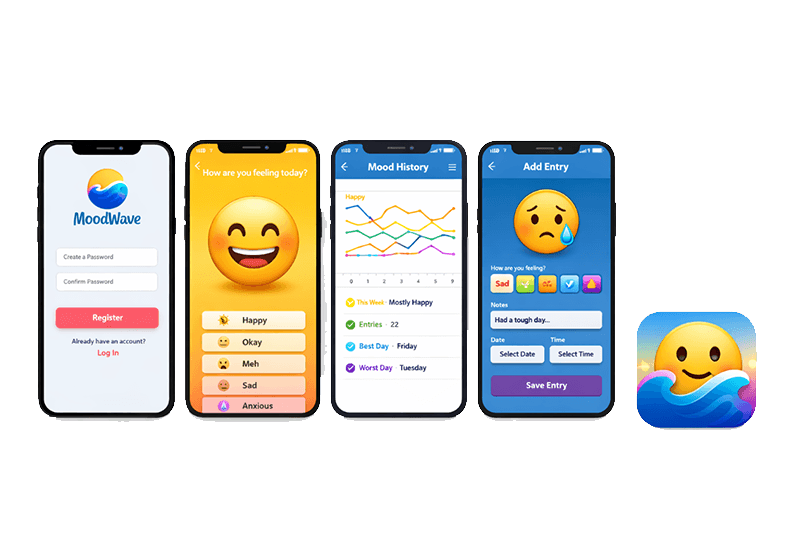
Hopefully, with these new changes, when I run the project it will look similar to these screenshots. Fingers crossed! 🤞
5. The final solution
First, some notes on the things that didn’t work and required immediate replacement/support:
- I couldn’t run the project after all those changes. Apparently, it included a discontinued package (from over 4 years ago) for the charts. When I pointed this out, it suggested a replacement.
- However, the replacement it suggested used an older version that didn’t build with the latest Flutter version (which it had recommended). So, I had to manually fix it myself.
But besides that, I was happily surprised with the result this time. It doesn’t exactly match the screenshots above, but somehow it looks much better (acceptable, I’d say) compared to the original proposed solution. This time, I ran the project on Android as well to make sure it worked on both platforms.
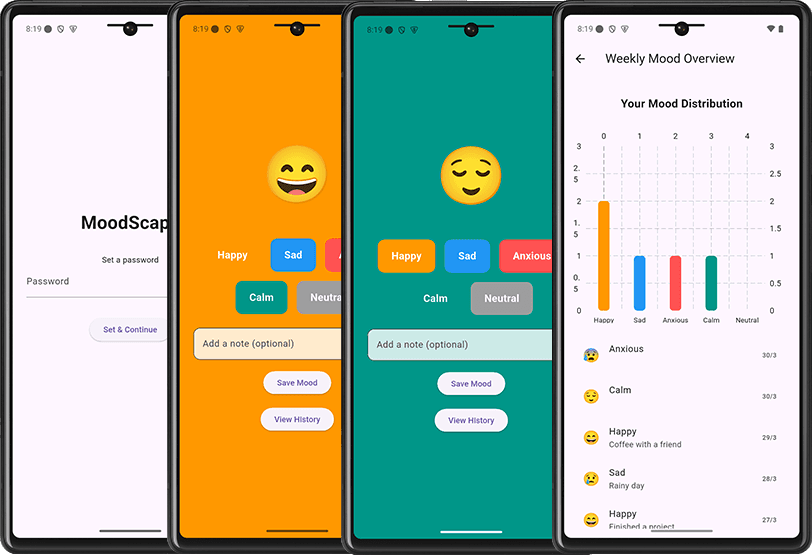
Key features of the final solution:
- It asks for an initial password which is then set (and works in the upcoming attempts to access the app);
- It saves the moods with a timestamp;
- Create a distribution graph;
- Fades in smoothly between moods in the mood screen;
- Allows an optional description;
- The icon app is actually quite beautiful, I must say.
6. Conclusions
To be fair, I think it’s best to draw conclusions from two perspectives: one from the persona (to demonstrate this use case) and one from my personal developer perspective, so we can separate what’s actually good from what’s just acceptable.
Persona perspective:
It works and mostly fits the requirements. Of course, additional steps — like publishing on app stores or giving access to patients — would require more (mostly bureaucratic) work. But I believe those could also be easily guided by AI or even a simple search.
So, I’d say it was a success. Simple apps with basic UI/UX can definitely be built with AI help. It took less than an hour to get everything sorted without prior knowledge, although some steps needed further explanation.
Developer perspective:
There are a lot of things that, as a developer, I don’t fully agree with — though many parts are perfectly fine. My takeaways:
- The project structure is acceptable and follows a decent approach for development.
- File naming conventions are clear and readable.
- Classes are somewhat well-structured, though I don’t agree with some choices: it often uses implicit types, constants are kept within classes instead of being isolated, and text strings are typed directly in Text widgets instead of using something like Intl (though this wasn’t requested, so I’ll let it slide).
- No tests were included (again, none were requested, and does AI really need tests?).
- It used deprecated libraries; if I hadn’t noticed, I might have ended up using them when better alternatives exist.
- There’s no controller or business logic handler — everything is done directly in the widgets.
There are a few more minor points, but overall, this covers the main observations.
In the end: yes, it’s possible. Yes, it can be good enough for someone with no prior knowledge to use AI and tools to build a simple project. But expectations should be kept low (at least for now).
I also wasn’t surprised to notice that I could’ve done better myself. So, if you’re a developer, use AI to your advantage, but don’t let it replace your deep knowledge and skills. Specifically, don’t think it can “solve” all your problems — otherwise, you may end up creating more 💪
Tags
Autor

Mobile Engineer
Lead Software & Architecture Engineer specializing in mobile architectures, with 6+ years of experience in Flutter since its alpha. Skilled in Java, Objective-C, C#, Dart, C++, and C, I’ve led high-scale projects, contributed to open-source, and actively participate in Stack Overflow. Former Flutter Portugal organizer, speaker, and workshop leader, I’m passionate about continuous learning, mobile development, and sharing knowledge.